
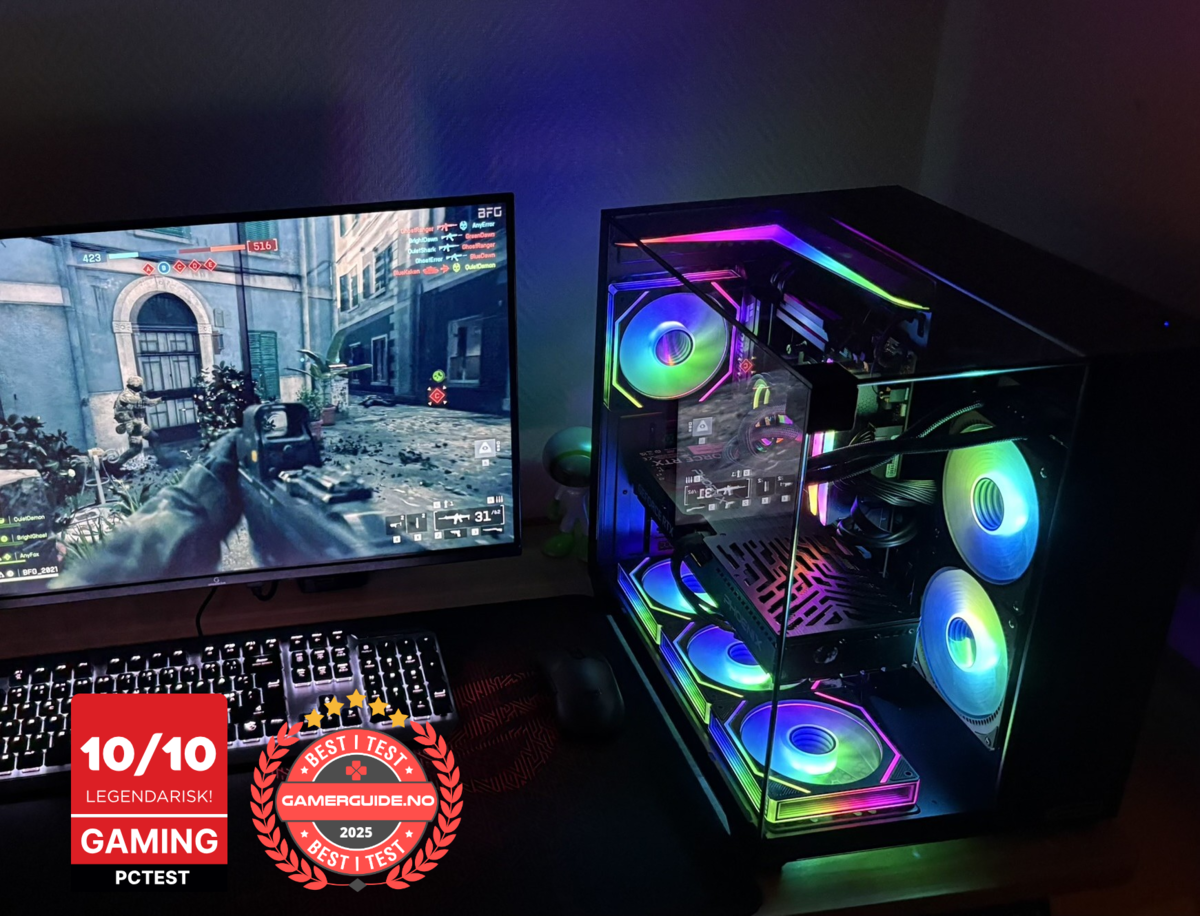
Build your gaming PC: The simple step by step guide
Building a gaming PC is easier than most people think. If you follow a clear order and do a few compatibility checks before you buy parts, you’ll end up with a fast, stable custom PC that’s easier to upgrade later.
This beginner-friendly guide covers the parts you need, what to prioritize for performance, and a simple step-by-step build process. At the end, you’ll find ready-to-go prebuilt gaming PCs from Greencom if you want maximum performance without the stress, plus local service in Norway.
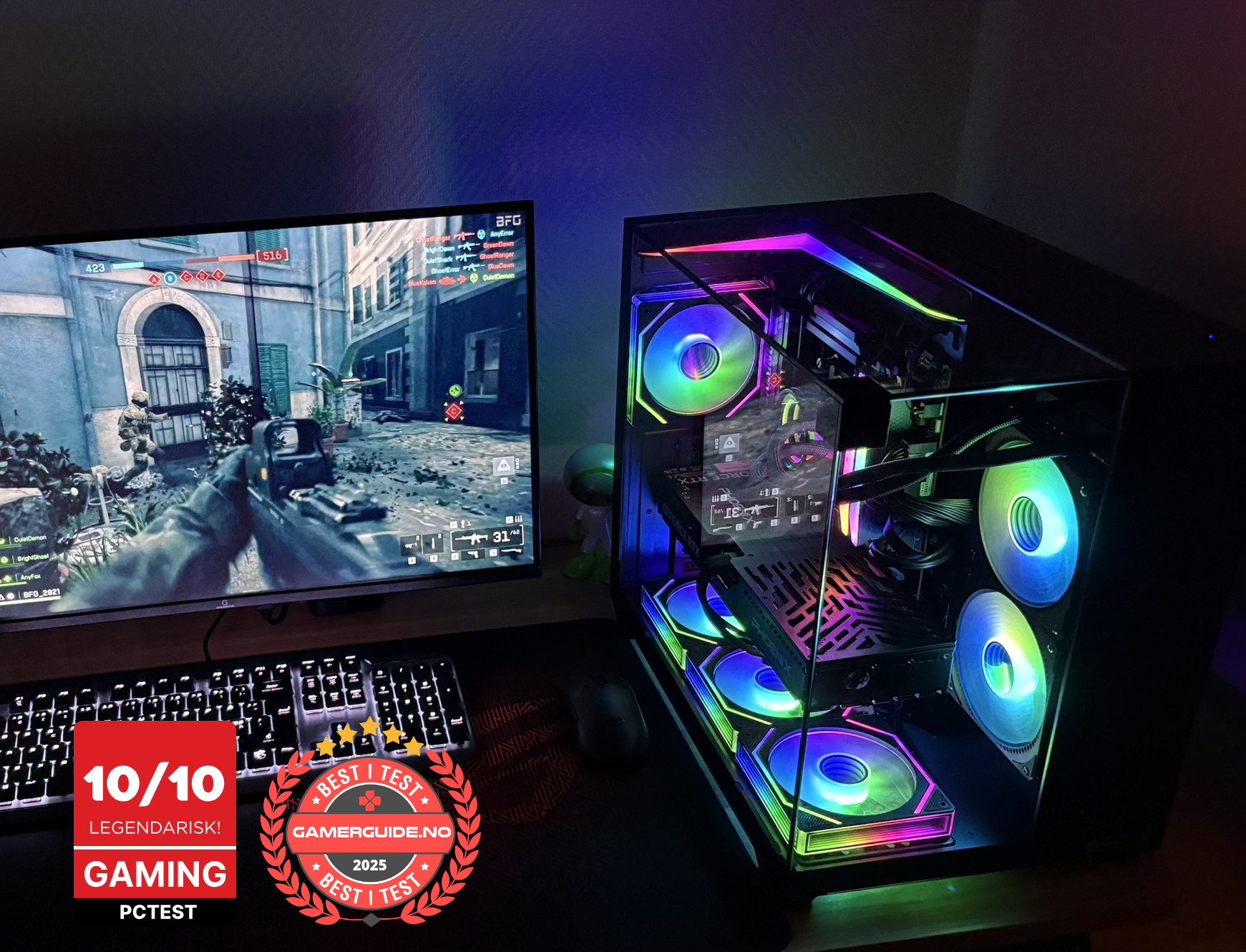
What you need to build a gaming PC (parts list)
- CPU (processor)
- GPU (graphics card)
- Motherboard
- RAM (memory)
- SSD storage (NVMe recommended)
- PSU (power supply)
- Case
- CPU cooler (air or liquid)
- Case fans (for airflow)
- Operating system (Windows/Linux)
Before you buy: 5 quick compatibility checks
- CPU socket matches the motherboard
- RAM type (DDR4/DDR5) matches the motherboard
- GPU length fits the case
- CPU cooler clearance fits the case (especially for tall air coolers)
- PSU size fits the case and has the right cables for your GPU
What to prioritize for gaming performance
For most builds, your best performance upgrades come in this order:
- GPU first (biggest FPS gains, especially at 1440p/4K)
- CPU (smoothness, 1% lows, high-refresh esports)
- RAM (capacity + dual-channel)
- SSD (loading times and overall “snappy” feel)
- Cooling + PSU (stability, noise, upgrade headroom)
Simple 2025 rules of thumb
- RAM: 16GB minimum, 32GB for comfort and future-proofing
- SSD: 1TB NVMe is a great starting point
- Airflow: a good airflow case often means lower noise
- PSU: quality + headroom matters more than “just watts”
Step by step: How to build your gaming PC
Step 1: Install the CPU
- Place the motherboard on its box (safe, non-conductive surface)
- Open the CPU socket latch
- Align the triangle marker and gently set the CPU in place
- Close and lock the socket
Step 2: Install the RAM
- Use the recommended slots (often A2/B2, check the motherboard manual)
- Press until both sides click into place
Step 3: Install the NVMe SSD
- Locate the M.2 slot
- Insert at a slight angle and screw it down
- Reattach the heatsink if your board includes one
Step 4: Install the CPU cooler
- If paste isn’t pre-applied, add a small pea-sized dot
- Mount the cooler according to its manual
- Plug the fan into CPU_FAN on the motherboard
Step 5: Prepare the case
- Remove both side panels
- Check motherboard standoffs match your board size
- Plan airflow: front/bottom intake, rear/top exhaust
Step 6: Install the motherboard into the case
- Carefully place the motherboard onto the standoffs
- Screw it in (snug, not overly tight)
Step 7: Install the PSU and route cables
- Mount the PSU (often fan facing down if there’s a bottom vent)
- Connect and route: 24-pin motherboard, 8-pin CPU power, GPU power cables
Step 8: Install the GPU
- Use the top PCIe x16 slot
- Screw the GPU bracket into the case
- Connect the required power cables
Step 9: Connect front panel, USB, audio, and fans
- Front panel buttons/LEDs (use the motherboard manual)
- Front USB and audio headers
- Case fans to fan headers or a hub
Step 10: First boot and BIOS setup
- Power on and enter BIOS/UEFI
- Confirm CPU, RAM, and SSD are detected
- Enable XMP/EXPO for RAM
- Check idle temperatures
Step 11: Install Windows and drivers
- Install Windows
- Install GPU drivers
- Run Windows Update
Common first-build mistakes (quick fixes)
- No display: make sure the monitor is plugged into the GPU, not the motherboard
- No boot: confirm the 8-pin CPU power cable is connected
- High temps: re-check cooler mounting and fan direction
- Low performance: enable XMP/EXPO and use dual-channel RAM slots
Want the performance without the build stress?
If you’d rather get a prebuilt gaming PC with clear specs and local support, check Greencom’s selection:
ArcticStorm iZ539X Gaming PC - RTX 5060 | i7 | 16GB
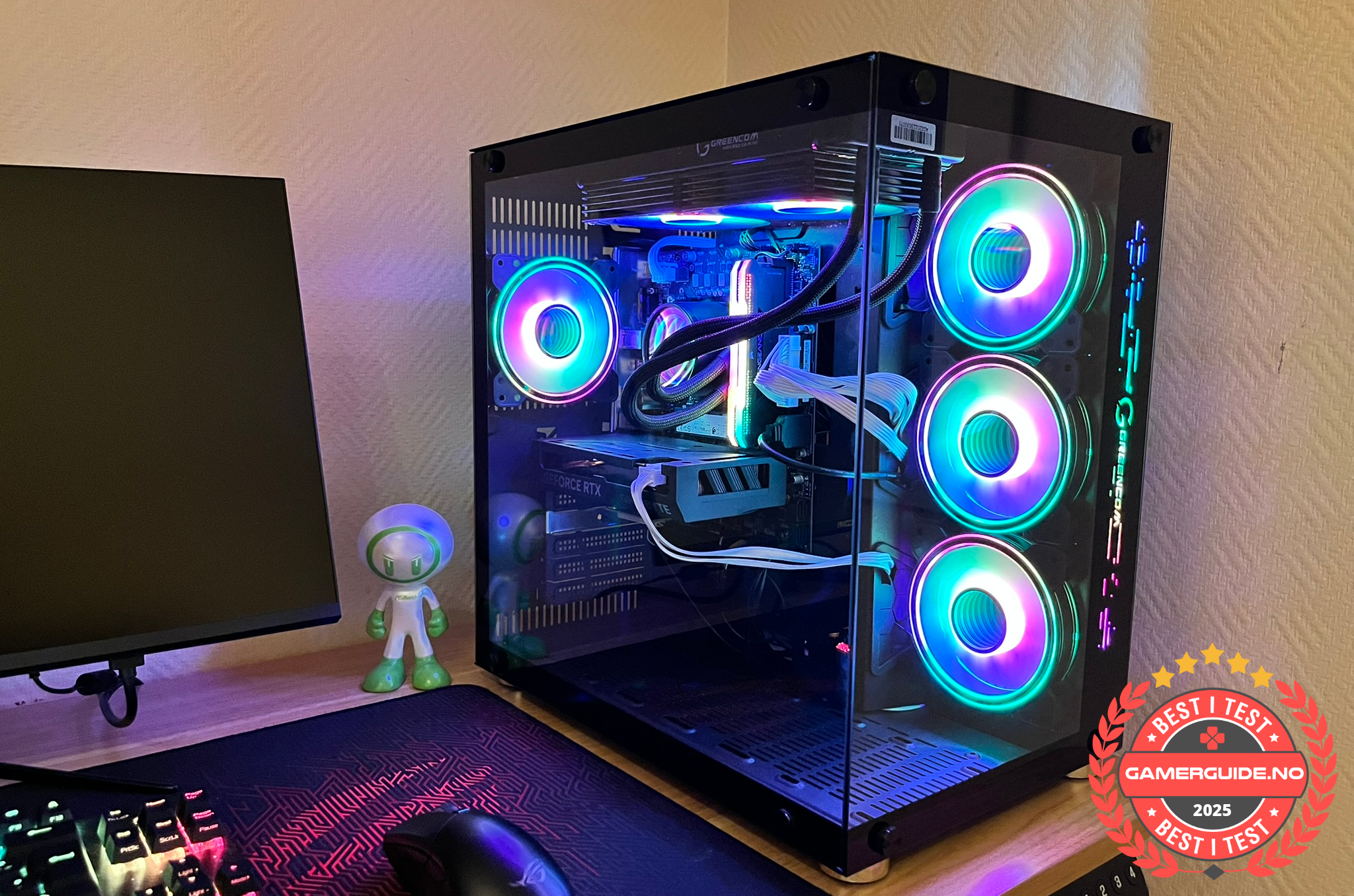
A strong value pick for 1080p gaming and high refresh, with a balanced setup.
Phoenix Z569CR Gaming PC - RTX 5060 | Ryzen 7 | 16GB
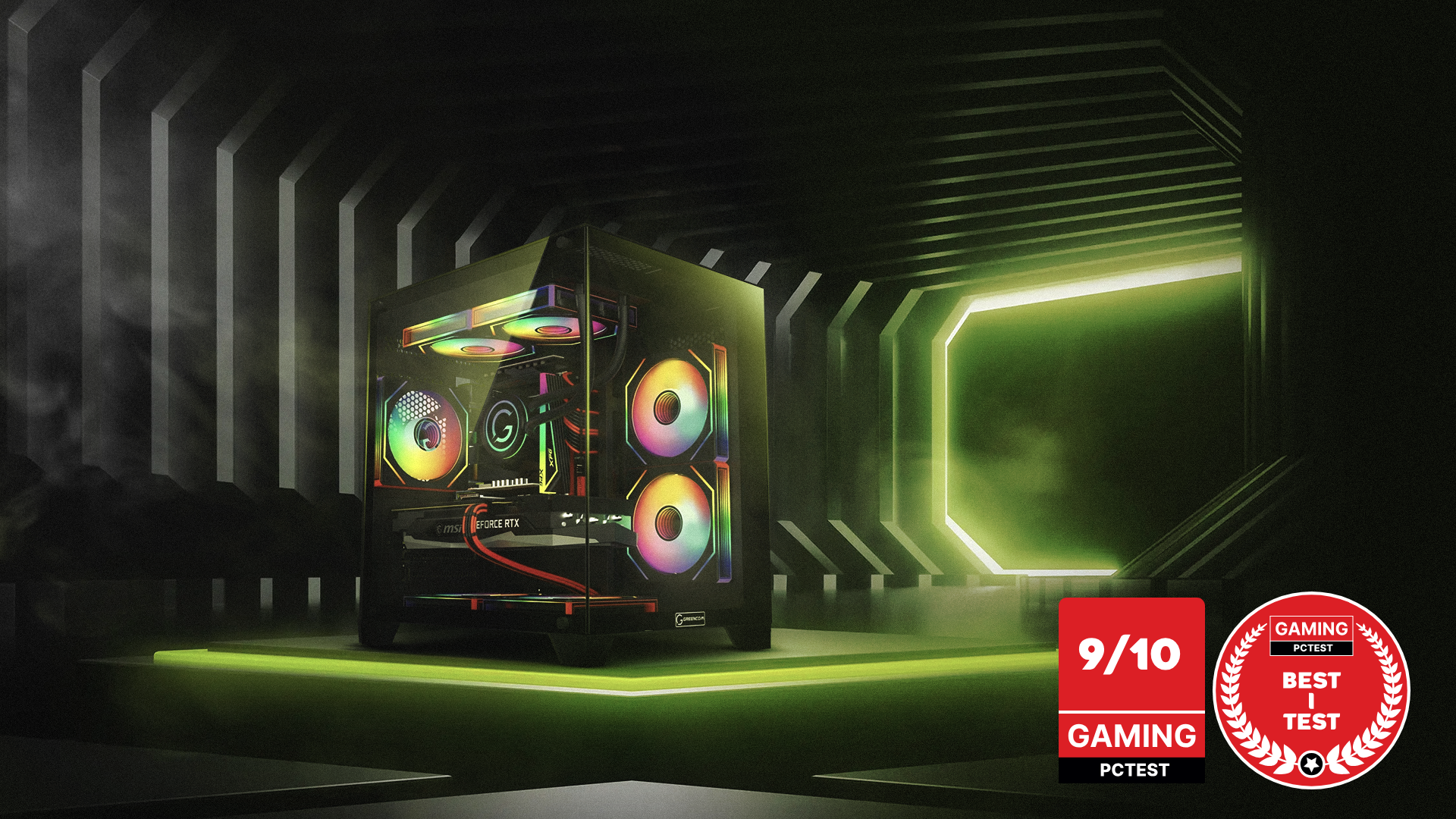
A balanced all-round PC that’s great for gaming and everyday use.
ZENITH hX97Z2 Gaming PC - RTX 5070 TI | Ryzen 7 9800X3D | DDR5 16GB
A more future-ready option for higher FPS at 1440p, built for smooth performance.
Summary
- Do quick compatibility checks before buying parts
- Build in order: CPU, RAM, SSD, cooler, motherboard, PSU, GPU, cables
- Enable XMP/EXPO and check temps on first boot
- For maximum value and support: consider a prebuilt gaming PC
_1.png?1775823017388)



.png)
.png)
.png)
.png)